

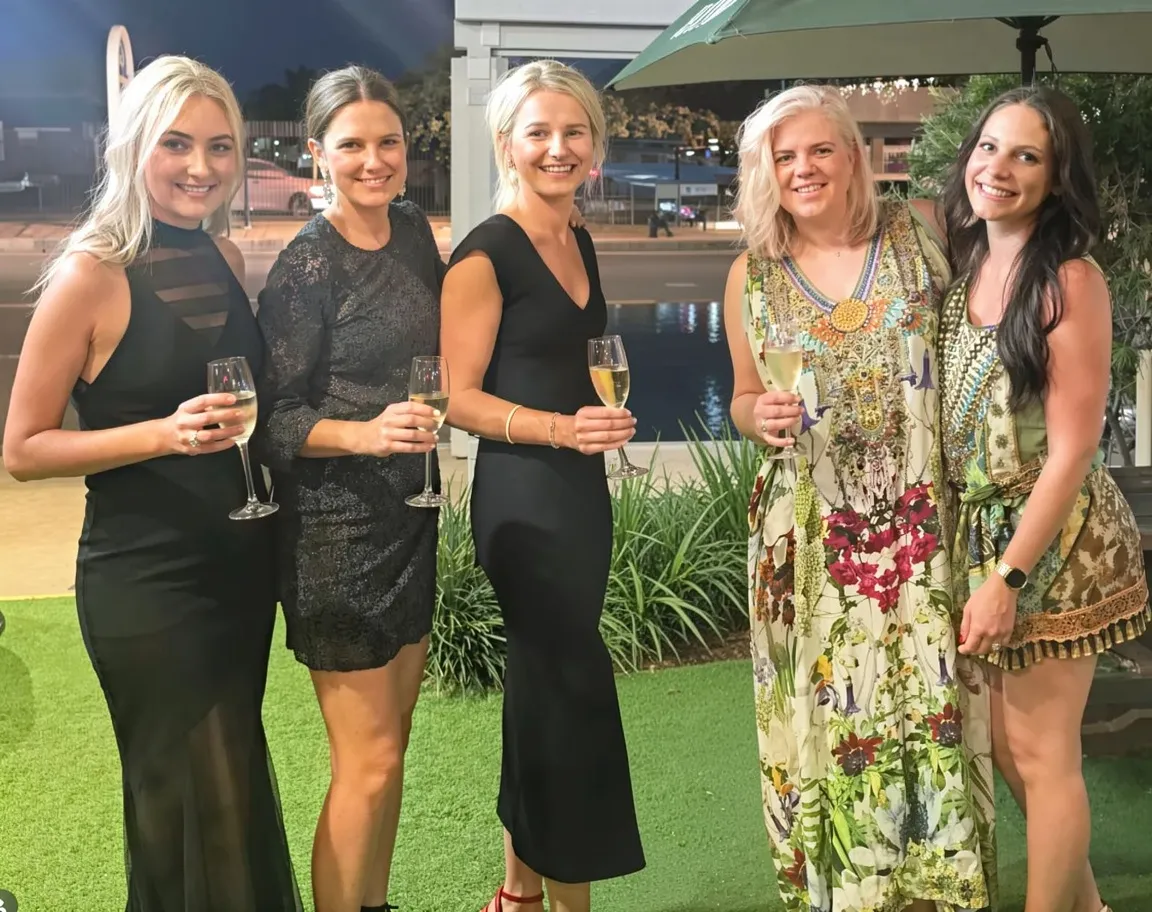
Remove people from a photo, keep your subject
Brush the people you want gone and the AI people remover rebuilds the scene behind them — sky, wall, ground, or scenery — while your subject stays sharp. Drag the slider to compare.
Erase tourists, passers-by, and background crowds while your subject stays sharp. Sign in · 12 credits per removal.
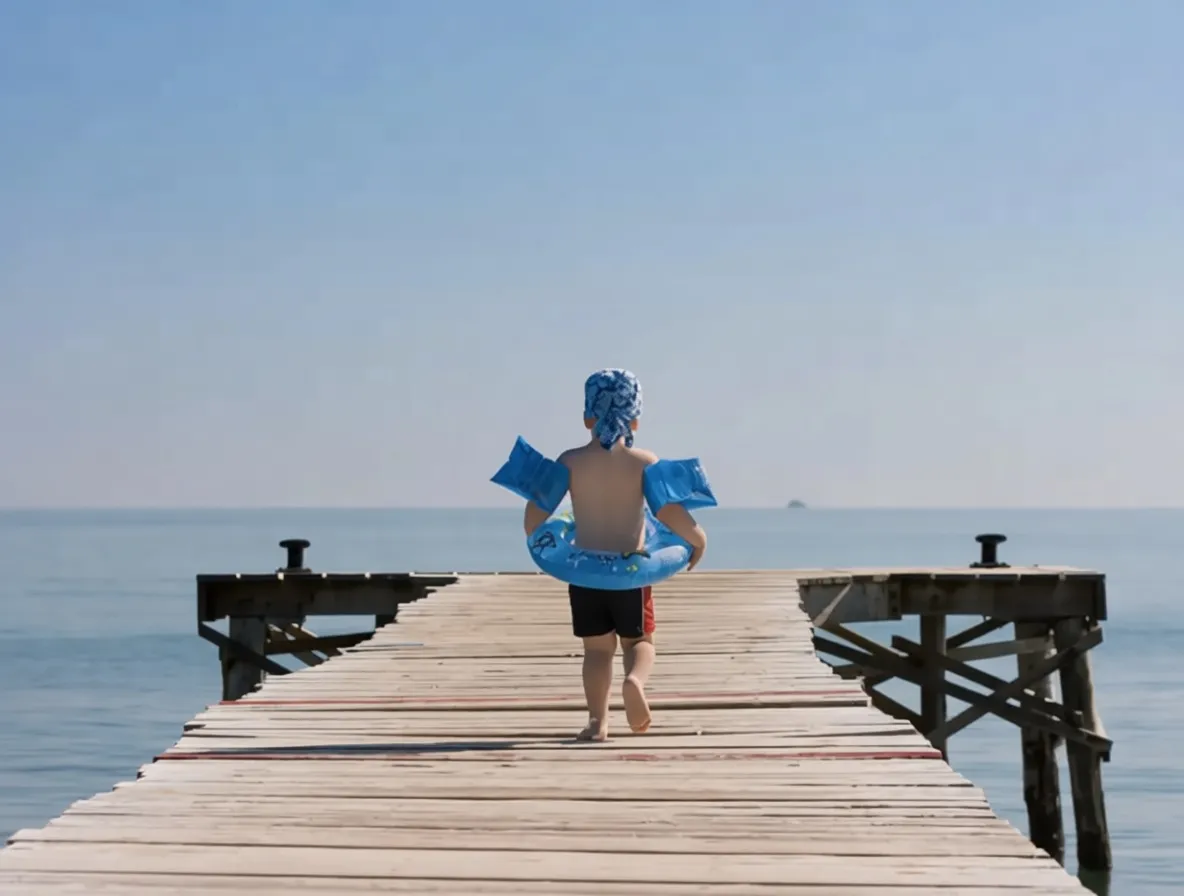
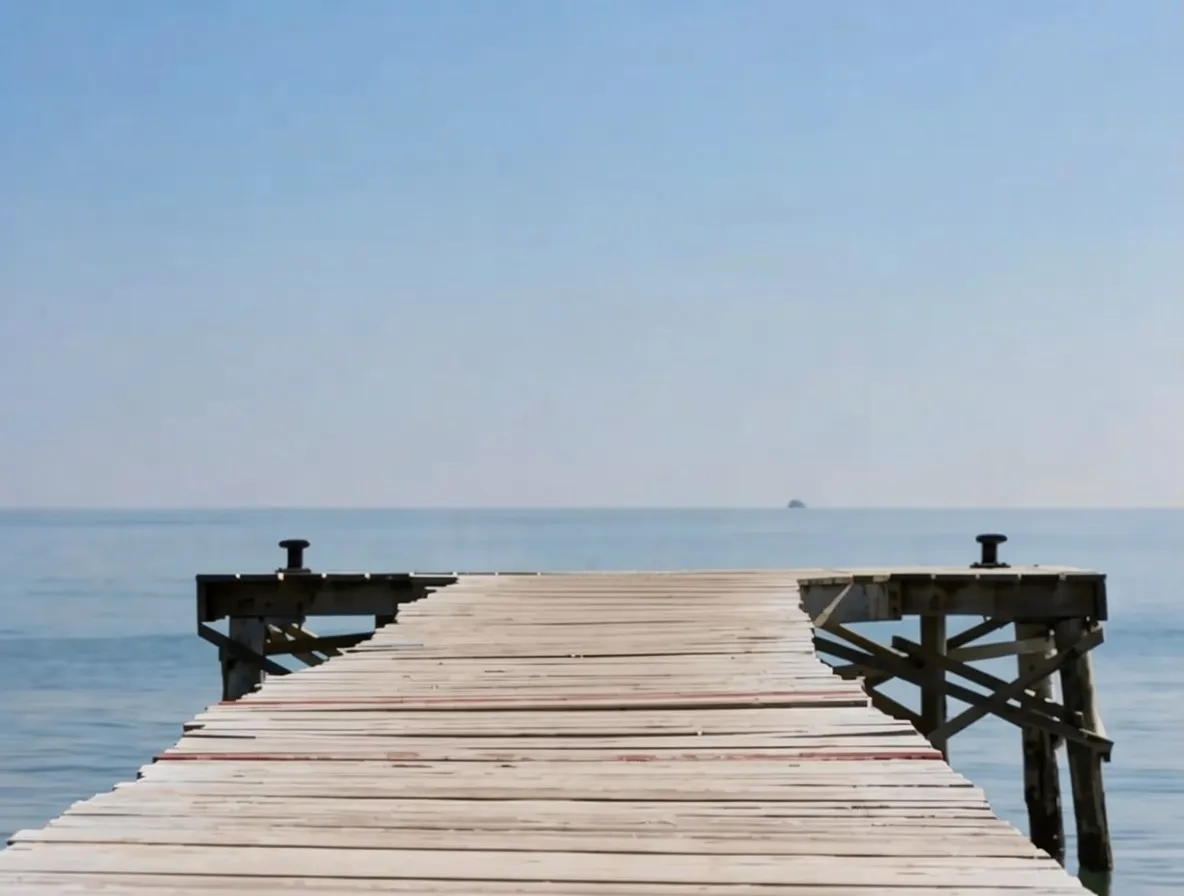
Brush the people you want gone and the AI people remover rebuilds the scene behind them — sky, wall, ground, or scenery — while your subject stays sharp. Drag the slider to compare.
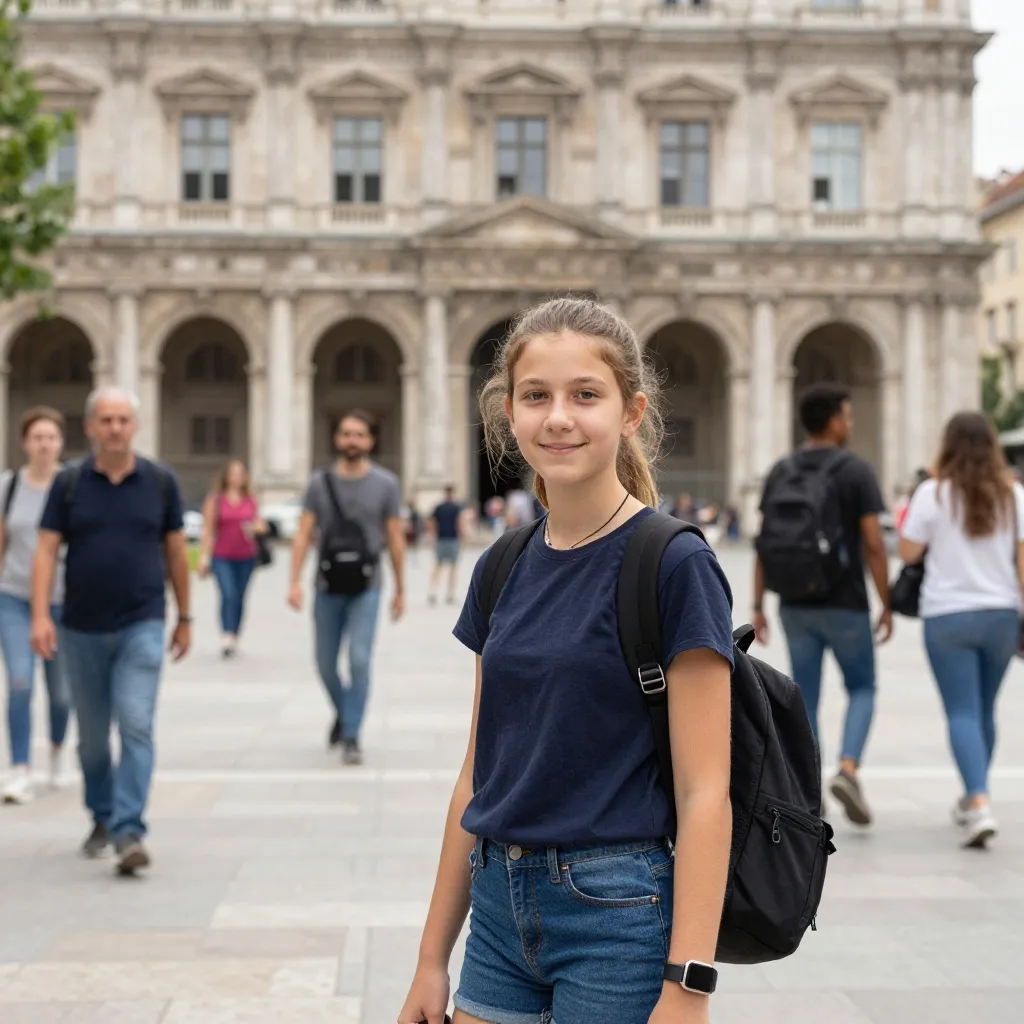
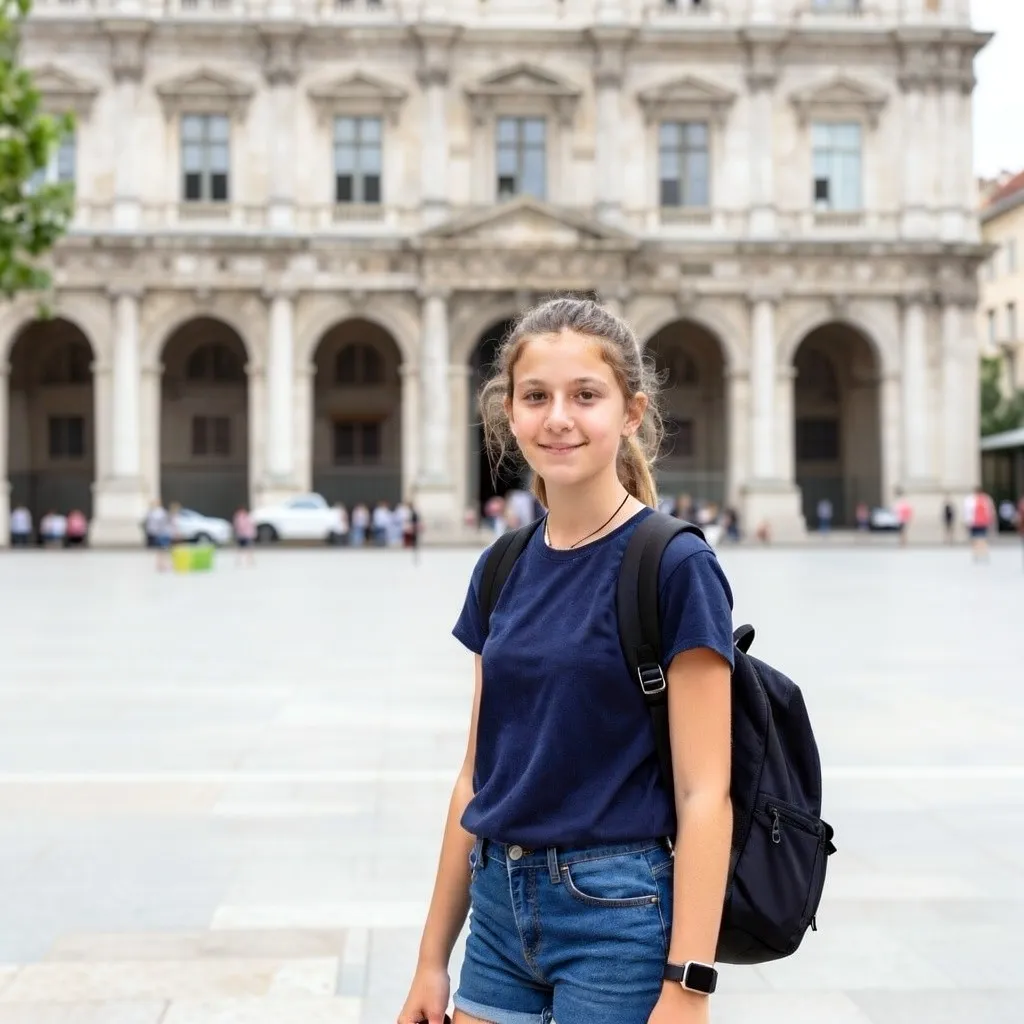
Paint a single person or a crowd; only the brushed area is rewritten, so everyone and everything you leave unpainted keeps its original look.
Upload a photo, brush over what you want removed, and sign in to submit. Each removal costs 12 credits. Inspect the reconstructed background before downloading the PNG. Hidden details are reconstructed, not recovered.
A landmark at sunrise with one tourist in the corner. A wedding candid where the venue's catering staff happens to walk through. The family beach day framed by someone else's swimwear silhouette. Background people are the single most common complaint about travel and event photography — they are rarely anyone's fault, and you almost never notice them in the moment. But back home looking at the picture, they are all you can see.
Cropping rarely fixes it, because the crowd usually sits just inside the composition you actually want. Smartphone portrait modes help a little by blurring the background but do not erase anyone. Manual cloning in Photoshop works but takes 10 minutes a photo and a lot of patience. A purpose-built AI background people remover is faster than all of those — paint, wait, done.
RemoveGenie runs a generative AI model under the hood. Rather than just inferring from surrounding pixels, it invents a plausible continuation of the scene — so it’s especially strong on large, complex regions like tightly packed crowds or figures against busy backdrops, where simpler erasers would struggle. It accepts any input aspect ratio and returns the result at that aspect ratio.
Prefer a deeper walkthrough? Read the full step-by-step guide to removing people from a photo, including the pass-by-pass trick for the cleanest result.
Upload your photo
Choose a JPG, PNG or WebP up to 10 MB. Images are resized to at most 1536 px on the longest edge before processing. Check the downloaded dimensions before using a result for print.
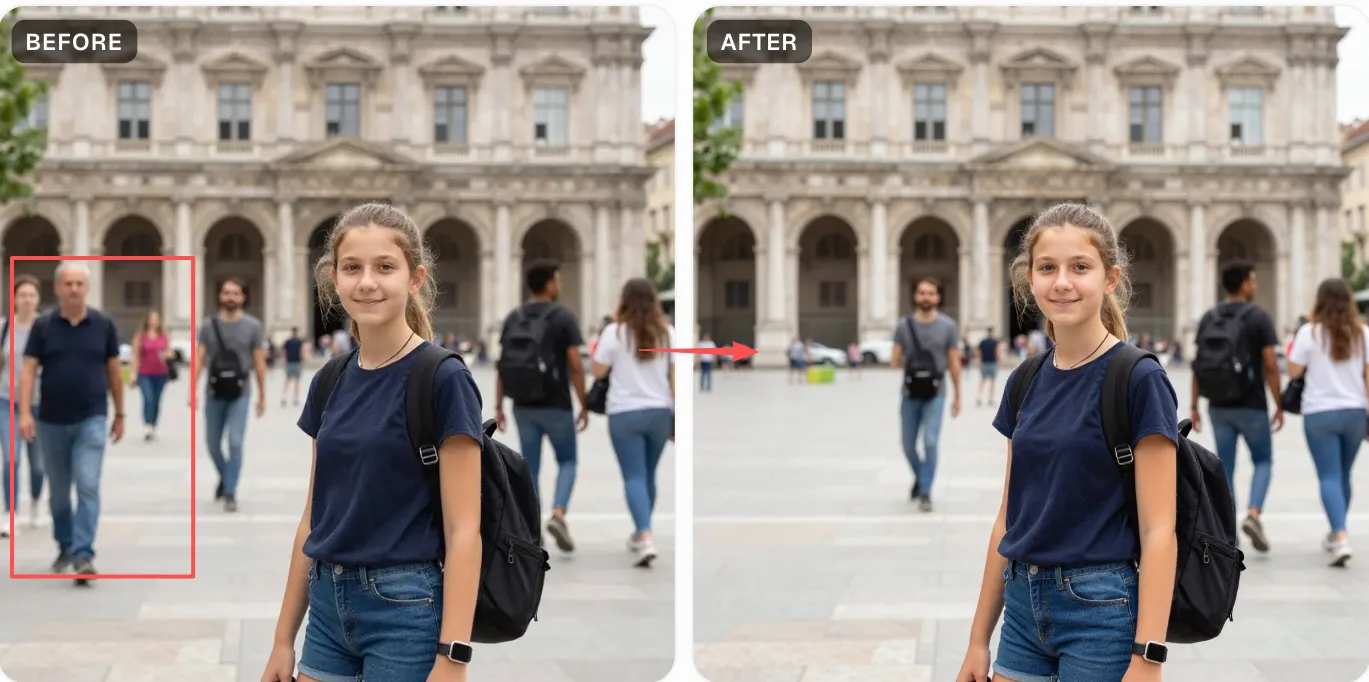
Brush every unwanted person
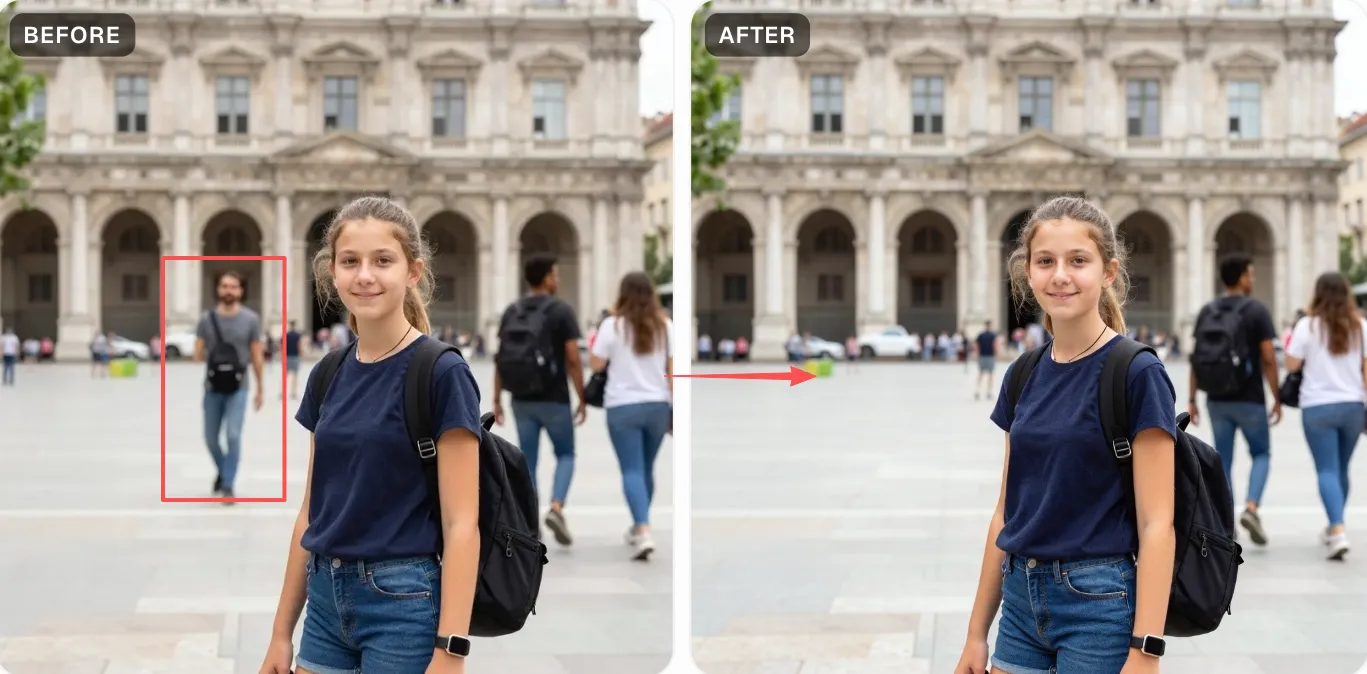
Paint over each photobomber, tourist, or pedestrian — full body, head, limbs, shadows, and everything you want gone. For a tight crowd, a larger brush (80–120 px) covers multiple people at once; isolate individuals with a smaller brush (40–60 px). Set Edge padding to 6–10 px around silhouettes, then use Refine edges with a smaller brush to protect nearby people and overlapping details.
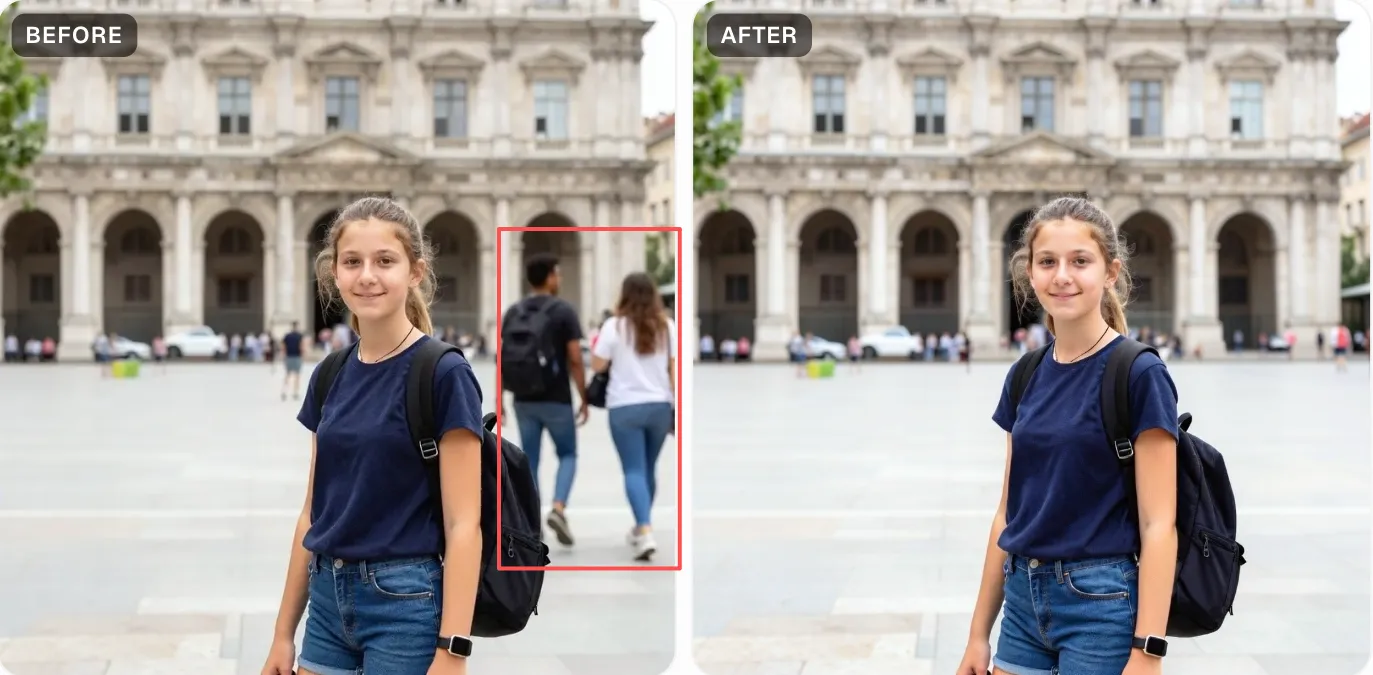
Download the clean scene
Submit for 12 credits. Processing time varies with image size, queue time and service availability. Refresh this page to reconnect to your existing task, or find the result in My Creations. Download and inspect the completed PNG.
Travel and landmark shots
The Eiffel Tower, the Grand Canyon, a temple at sunrise — scenes with permanent tourist traffic you cannot dodge. Brush the crowd, keep the landmark.
Street-photography cleanup
A framed composition ruined by one photobomber in the corner. Paint them, the background (road, building) fills in cleanly.
Venue and concert photos
Wide shots where the audience or venue staff clutter the frame behind the performer or guest of honour.
Family snaps with bystanders
A kids' birthday at the beach with strangers in swimwear in the background; a hiking photo with other trekkers in the distance.
Real estate and property shots
Listing photos where passers-by or neighbours wander into the frame. Clean shots rank better on listing sites.
Wedding ceremony reference photos
The official photographer handles the main shots; your candid reference pics often have catering staff or other guests in the wrong place. Clean them for a family album.
Brush generously around heads and shadows
Human silhouettes are harder to erase cleanly than objects because the AI has to reconstruct context-sensitive backgrounds. Include hair, hands, feet, shadows cast on the ground, and reflections on glossy surfaces. Edge padding adds a controlled margin; Refine edges protects anything you covered by mistake.
Works best when the background is uniform-ish
Sky, ocean, grass, pavement, brick walls, carpets, woodgrain — these all rebuild beautifully. Dense foliage, patterned fabric, stepped stairs, and anything highly structured can leave soft seams. For the latter, a quick manual touch-up in any image editor finishes the job.
Crowds are fine — just paint them as one region
You do not need to brush each person separately. For a packed sidewalk or concert crowd, paint the whole block in one stroke. The model handles large contiguous masks better than many small ones — fewer seams to blend.
Stand-alone subjects get the cleanest result
When your subject is clearly in the foreground and the people to remove are in the background, the AI has the easiest job. When the subject is intertwined with the person you are removing (shared handrail, overlapping limbs), the reconstruction can bleed into the subject. Paint carefully around the overlap zone.
Choose a JPG, PNG or WebP up to 10 MB. Images are resized to at most 1536 px on the longest edge before processing. Check the downloaded dimensions before using a result for print.
The edit is guided by your mask. Inspect the output for edge remnants, background artifacts, changes to faces and damage to text. Pixel-identical preservation outside the mask is not guaranteed.
Weird edges in mixed scenes. When the person you are removing is physically intertwined with the subject (shared handrail, overlapping limbs, leaning on a wall right next to your subject), the AI can blend parts of the subject into the fill. The best defence is to paint carefully around the overlap — err on the side of including small bits of background rather than accidentally covering your subject.