


Specialised tool · AI text removal

Remove Text from Image

Brush over a date stamp, caption, subtitle, watermark phrase, or any writing burned into a photo, and the AI rebuilds the surface underneath. Sign in · 12 credits per removal.

Text removed — before
Text removed — after

Before / After

Text removed

Remove captions and subtitles from a photo — before
Remove captions and subtitles from a photo — after
Before / After

Remove captions and subtitles from a photo

Burned-in captions, lower-thirds and subtitle bars lift off in one pass. The AI reads the text region, deletes the glyphs, then rebuilds the texture underneath so there is no smudge or grey box where the writing used to sit.
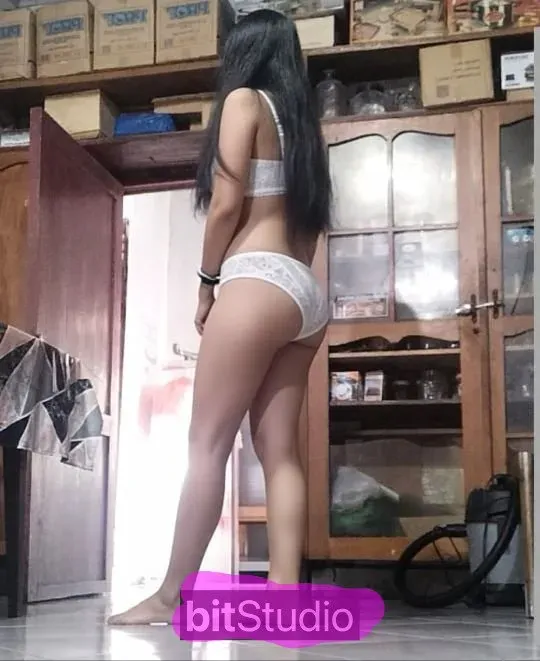
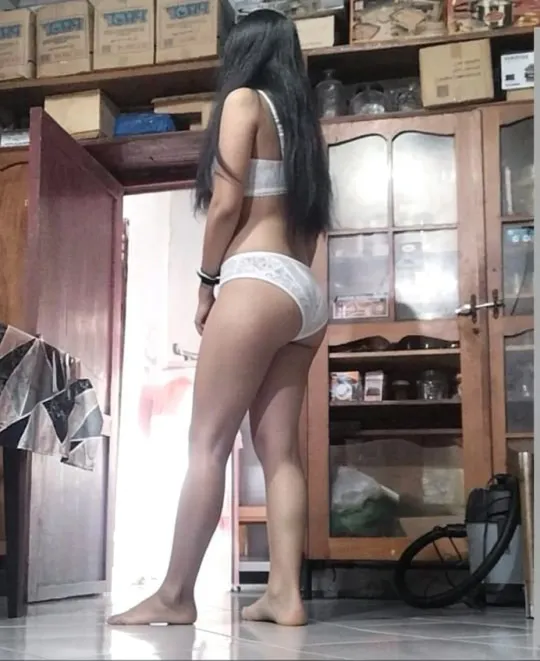
Erase text overlays from a poster or portrait — before
Erase text overlays from a poster or portrait — after
Before / After

Erase text overlays from a poster or portrait

Vertical posters and portraits often carry quotes, names or marketing copy across the frame. Brush over the overlay and the eraser clears every line at once while keeping faces, edges and lighting intact.

Clean date stamps and labels off an image — before
Clean date stamps and labels off an image — after
Before / After

Clean date stamps and labels off an image

Camera date stamps, price tags and corner labels are the hardest text to remove by hand. RemoveGenie repaints the selected background, so the stamp disappears and the photo looks like it was never marked.

In short

Upload a photo, brush over what you want to remove, and sign in to submit. Each removal costs 12 credits. Review the reconstructed background before downloading the PNG. Results depend on the mask and surrounding scene; hidden details are reconstructed rather than recovered.

Where burned-in text comes from

Text gets baked into an image in dozens of ways. Older cameras and phones stamp an orange date and time into the corner of every shot. Streaming rips and short-form videos ship with hardcoded subtitles that cannot be toggled off. Stock agencies print “SAMPLE” or a diagonal copyright line across previews. Memes carry bold headline captions, and social apps add usernames and overlay labels when you share. Scanned documents arrive with handwriting, signatures, and price tags you may want gone.

Once text is rasterised into the pixels, there is no “hide layer” button — the letters are part of the picture, sitting on top of whatever was behind them. Removing them cleanly means rebuilding that hidden surface, which is exactly what AI inpainting does: it studies the pixels surrounding your brush and predicts a seamless continuation of the wall, sky, skin, or paper the words were covering.

For your own photos and content this is routine cleanup. For text that carries ownership or attribution — a photographer’s watermark, a copyright notice, an agency credit on a licensed image — check your rights first. Removing copyright management information can be a separate violation under US law (17 USC §1202) and equivalent rules elsewhere, independent of any underlying copyright.

How to remove text in 3 steps

  1. 1

    Upload the image with text on it

    JPG, PNG and WebP files up to 10 MB are supported. The editor resizes images to at most 1536 px on the longest edge before processing. Check the downloaded dimensions before using a result for print.

  2. 2

    Brush over every word you want gone

    Paint a mask across the text. For a single-line date stamp or caption a 20–35 pixel brush is plenty; for a large meme headline or a diagonal watermark phrase, widen the brush and paint the whole line in one continuous stroke. Add 3–5 pixels of margin past the letterforms — the descenders on g, y, p and the dots over i and j are easy to miss, and a stray pixel of ink leaves a visible smudge. The red overlay shows exactly which pixels get rewritten.

  3. 3

    Download the clean image

    Submit for 12 credits. Processing time varies with image size, queue time and service availability. Keep this page open, refresh to reconnect, or find the result in My Creations. Download the completed PNG and inspect the reconstructed region before using it.

Text types this removes

A quick reference for the most common cases, the brush size that works, and how cleanly each tends to rebuild.

Text type
Date & time stamps
Typical example
"08 15 2009" burned in orange by an old camera
Brush size
20–35 px
Difficulty
Easy
Text type
Subtitles & captions
Typical example
Hardcoded subtitles on a film or TikTok still
Brush size
25–45 px line
Difficulty
Easy
Text type
Watermark text
Typical example
"SAMPLE", agency name, diagonal © phrase
Brush size
40–90 px line
Difficulty
Medium
Text type
Meme & overlay text
Typical example
Bold white Impact headline, 'POV' labels
Brush size
50–100 px
Difficulty
Easy
Text type
Signs & labels in the scene
Typical example
A shop sign, a name tag, a license plate string
Brush size
30–70 px
Difficulty
Hard
Text type
Handwriting & document text
Typical example
A note on a form, a signature, a price tag
Brush size
20–50 px
Difficulty
Medium

Tips for cleaner results

Catch the descenders and accents

Letters like g, j, p, q, y drop below the baseline, and i, j, é, ñ carry marks above. A tight mask that hugs the main body of the text often leaves these stragglers behind as faint specks. Paint a few pixels past the obvious edges.

Paint a whole line, not letter by letter

Continuous text rebuilds more cleanly in one pass. Brushing each word separately leaves the AI guessing at the gaps between them, which can show as faint seams where two predictions meet.

Uniform surfaces vanish best

Text over sky, a painted wall, paper, skin, or a smooth gradient is reconstructed almost perfectly. Text sitting on busy texture — foliage, brick, patterned fabric, or another piece of text — is harder, and may leave soft residue you can touch up afterwards.

Outlined or shadowed text needs a wider mask

Caption text often has a dark stroke or drop shadow for legibility. Paint past the stroke, not just the coloured fill, or a thin outline ghost of the letters can remain.

What it can and can’t do

It removes text — it does not read or translate it

This is an eraser, not OCR. The AI never decodes the words; it just rebuilds the surface they covered. If you need the text extracted or translated, use an OCR tool first, then clean the image here.

Whatever was behind the text is reconstructed, not recovered

When a caption covers part of a face or a detailed object, the AI invents a plausible continuation from the surrounding pixels. On a plain wall that is invisible; over fine detail it is an educated guess, not the true hidden content.

Tiny low-contrast text can need a steady hand

A pale timestamp on a bright sky is easy to miss. Zoom your browser in (Cmd/Ctrl +) and paint its known location even if you can barely see it — the AI cleans faint regions just as well once they are masked.

FAQ

Questions about removing text

Related tools

Remove Watermark from Photo

Tuned for diagonal © lines, stock 'SAMPLE' banners, and dense watermark text across a whole frame.

Remove Sticker from Image

Erase emoji, chat bubbles, and overlay graphics from screenshots and social exports.